Move text
by feel.
A tiny four-direction lever gives the clipboard a physical home on the keyboard. Pull, push, left, right: common editing actions become memorable movements with a tactile answer.
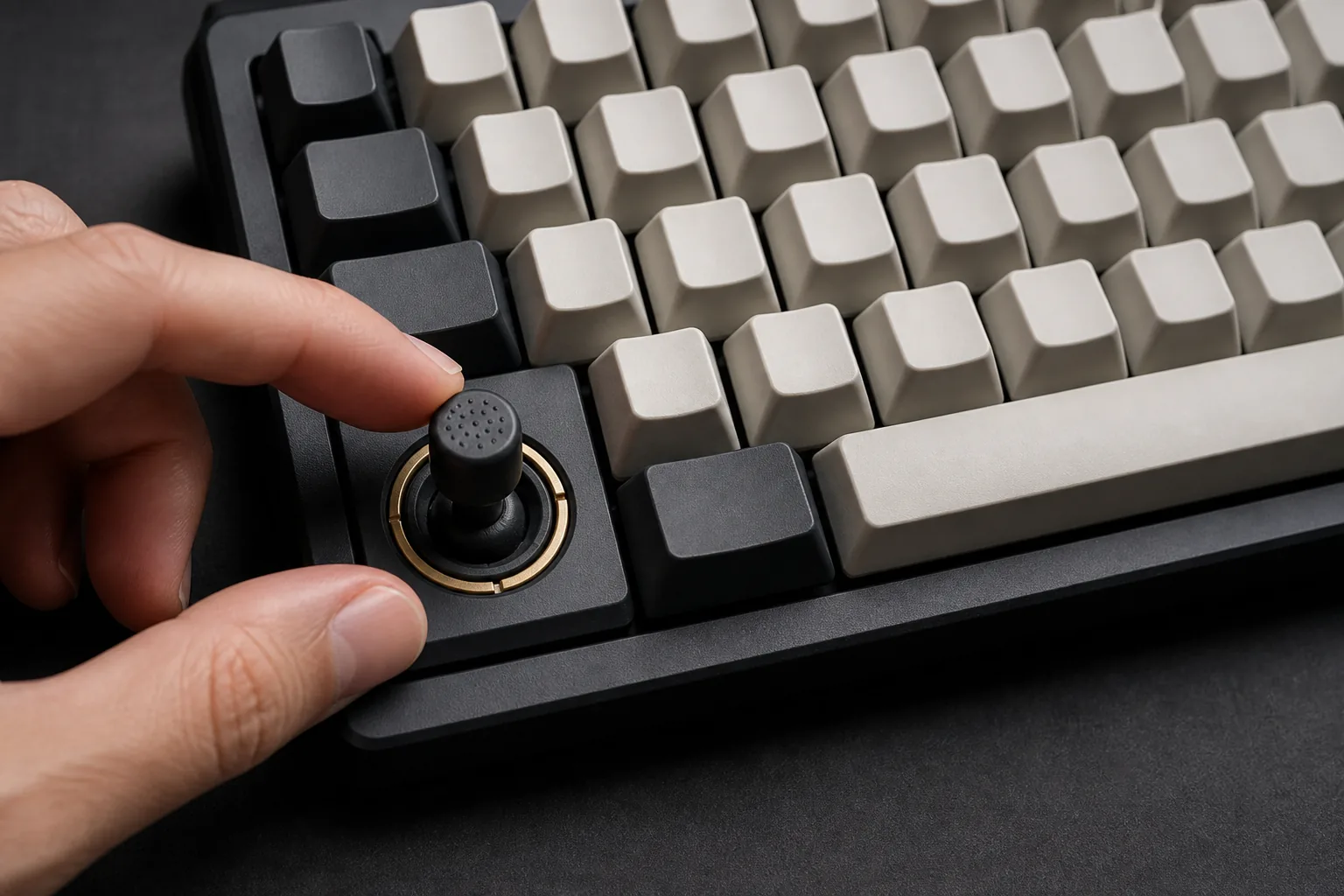
The hand learns a little language.
Copy lifts something out. Paste puts it down. Delete moves it away. Five familiar editing actions share a single tactile control, with each movement carrying its own meaning.
| ↑ Pull up to copy | The current selection goes to the clipboard. |
|---|---|
| ↓ Push down to paste | The clipboard contents enter at the cursor. |
| ← Left to delete | The selected text is removed; the clipboard stays as it was. |
| ↖ Pull + left to cut | Hold the copy movement, then cross the left threshold: save the selection and remove it. |
| → Right to select a line | Select the entire line containing the cursor. |
Keep your attention on the words.
Text editing asks the hand to alternate among letter keys, multi-key chords, pointer movement, menus, and application-specific selection behavior. Each switch interrupts the place where the eyes and mind were working. For people who cannot comfortably form repeated chords, that small interruption can become the governing cost of the task.
A person selects the right passage, looks away to find a command, loses the selection, tries again, and finally deletes the wrong thing because the interface gave no physical distinction between a harmless copy and a destructive cut.
The most common transformations live under one resting finger. Direction carries meaning, a detent confirms that the threshold was crossed, and the hand can learn the sequence without leaving the text or asking the eyes to supervise every command.
A movement you can distinguish
The gate, travel and spring return make directions feel different under the finger. A detent marks the command threshold. Optional vibration or sound can reinforce the movement, while the mechanism supplies the primary tactile response.
Delete can have a more deliberate leftward throw; cut requires the held pull followed by a left movement. A diagonal wobble as the lever returns to centre should not count. Force and travel remain adjustable, including for people with limited hand strength.
Cut and delete can wait for an existing selection. A reliable neutral position prevents unwanted repeats, and ordinary operating-system commands preserve familiar Undo behavior and the existing clipboard.
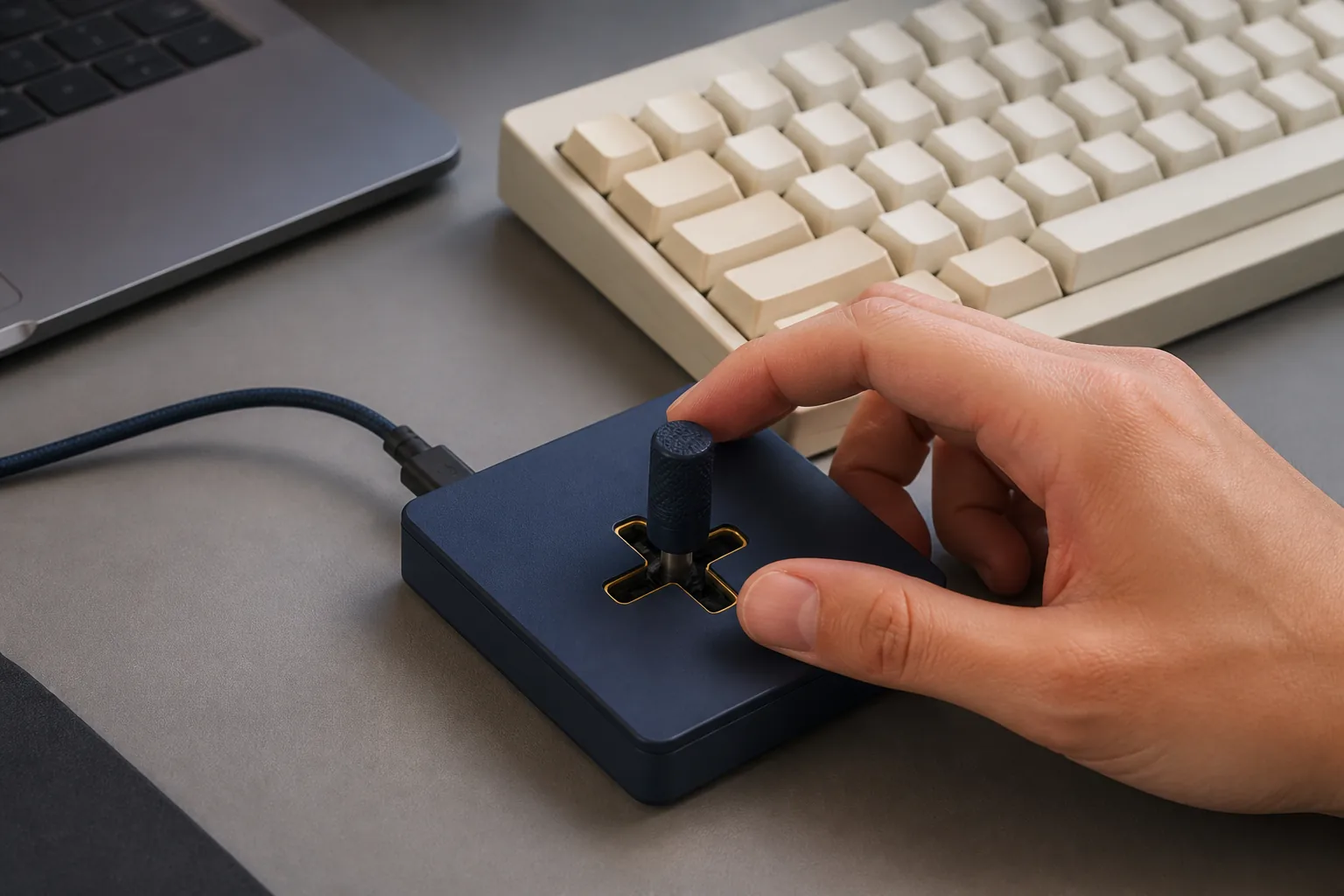
Find its place beside the keyboard.
A standalone USB device can test the idea with existing computers, keyboards, applications, and users. It avoids tooling a new keyboard before the important questions—hand position, directional error, command latency, fatigue, and habit formation—have answers.
A cross-gated lever with adjustable return force and travel can begin as a small USB accessory. Local settings expose mappings, sensitivity, hold time, handedness and feedback. The same mechanism can later become a built-in keyboard module once its position and gesture feel natural in daily use.
Browsers, text editors, design tools and terminals give “line” and “selection” different meanings. Trying the control across those applications establishes where standard shortcuts are sufficient and where the mapping needs to adapt.
A control that fits the person using it.
The five gestures give the object its identity. Placement on either side, remapping, force and dwell adjustment, momentary or toggle behavior, and the option to disable a gesture let that vocabulary adapt to different hands and habits.
Everyday trials would include experienced shortcut users, people who normally reach for a mouse, and people with varied dexterity. Directional mistakes, accidental commands, recovery, fatigue and continued use matter as much as speed. The useful result is a movement the hand remembers while the eyes stay with the work.